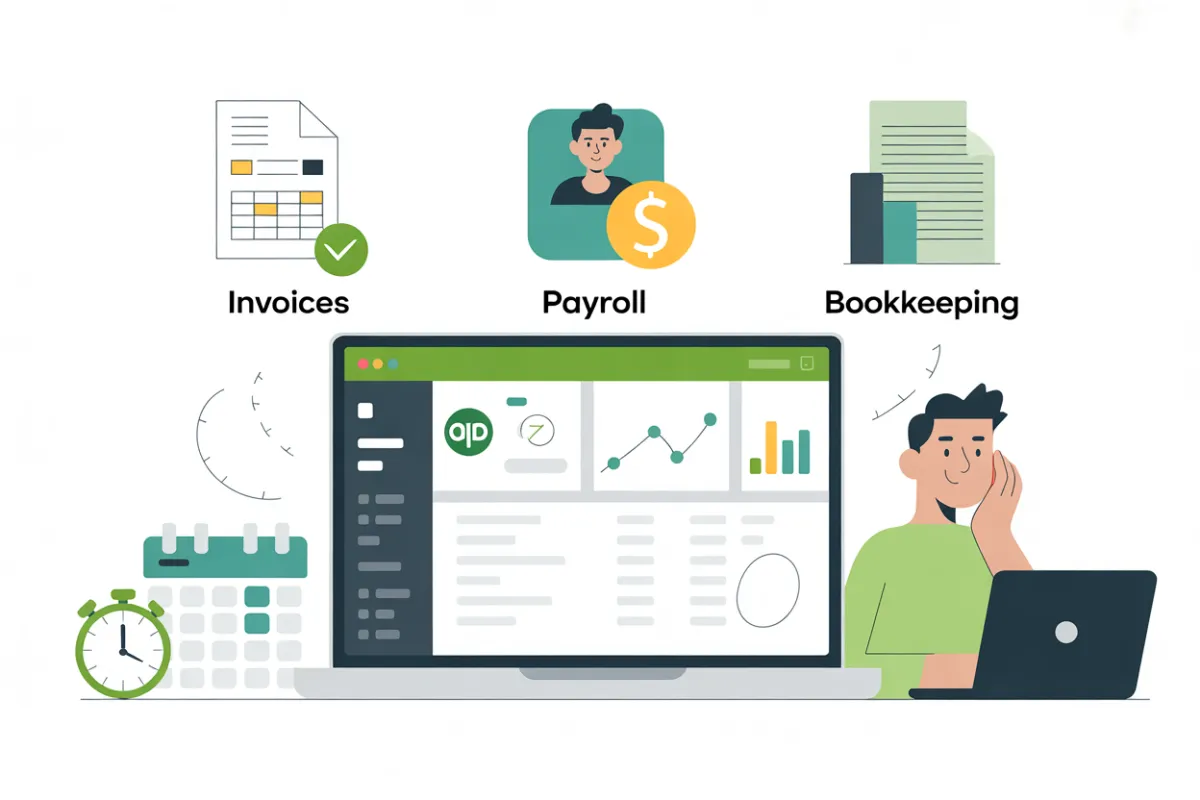
QuickBooks for Business Owners: QuickBooks Online Features for Small Business Bookkeeping
5 Essential QuickBooks Online Features Most Business Owners Don’t Use (But Should)
Introduction: Why QuickBooks Online Matters for Every Business
QuickBooks Online has become one of the most powerful business accounting software options available for small businesses. QuickBooks Online has become a go‑to tool for running a business, helping owners and accounting firms manage income and expenses, streamline daily tasks, and generate clear financial reporting and profit and loss statements. As a cloud‑based solution from Intuit, QuickBooks Online offers automatic updates, secure access to your financial data, and integrations that help small businesses stay on track.
Yet many business owners only scratch the surface of what QuickBooks Online features can do. If you’re using QuickBooks only to send invoices and record basic transactions, you’re likely missing features every business can benefit from. This guide walks through five essential and often underused features of QuickBooks that can save you time, improve financial health, and help you get the full potential from QuickBooks. Whether you started on the desktop version and moved from desktop to online, or you’re new to QuickBooks accounting, these tools can help your business and help companies better understand their financial picture.
Feature 1: Automated Bank Reconciliation – Let QBO Match Your Bank for You
How QuickBooks Online Simplifies Bank Reconciliation
One of the top QuickBooks Online features that many owners underuse is automated bank reconciliation. When you match your bank feeds to your transaction history, QuickBooks makes it easy to compare your bank reconciliation data with the chart of accounts and categorize transactions correctly. Instead of manually entering each line from your statement, QBO pulls in live bank feeds and suggests matches based on predefined rules and your transaction history.
This automation helps ensure that your income and expenses in QuickBooks align with your actual bank activity. Over time, this keeps your records accurate, keeps your books clean, and keeps your records up‑to‑date with minimal effort. It’s one of the top QuickBooks tools for owners who want to stop manually entering repetitive data.
Benefits for Small Businesses: Reducing Errors and Saving Time
Automated bank reconciliation is more than a convenience—it's a risk reducer. By letting QuickBooks automatically update transactions from your bank, you greatly reduce the chance of duplicate entries, missing items, or accidentally voided transactions. This feature also highlights possible mismatches so you can fix issues before they affect your reports.
Because QuickBooks Online helps businesses handle this process quickly, you can spend less time worrying about data entry and more time reviewing profit and loss reports and reports to help guide decisions. In short, QBO helps you make better decisions by giving you clean, timely data.
Step‑by‑Step Overview of Automating Reconciliation
Connect Your Bank Account
From the opening QuickBooks dashboard, connect your bank and credit card accounts so QBO can import your transaction history.
Access the Banking / Reconciliation Tool
Go to the Banking tab, where you can see all imported transactions and begin to match your bank data to your books.
Match and Categorize Transactions
QuickBooks Online will suggest likely matches based on vendor, date, and amount. You can categorize or recategorize transactions to the right accounts in your chart of accounts.
Review and Confirm
After you’re comfortable that QBO’s suggestions are correct, confirm the matches and complete the reconciliation. This helps you understand that what’s in the bank agrees with what’s in your system.
Feature 2: Customizable and Automated Invoicing – Get Paid Faster
Creating and Sending Professional Invoices Quickly
Among the QuickBooks online features, the invoicing tools stand out because they help you send invoices that look professional and consistent. You can customize invoice layouts with logos, colors, terms, and even tailored messages for each business owner, or help clients understand charges. For many, QuickBooks is one of the best QuickBooks solutions because its invoice system is tightly integrated with tracking income and expenses.
With built‑in templates, you can create invoices for any product or service in just a few clicks. The system pulls prices from your items list, applies taxes if needed, and updates financial reporting immediately, including your profit and loss statements.
Automating Recurring Invoices for Efficiency
If you use QuickBooks for retainers, subscriptions, or ongoing service work, recurring invoices are a major time saver. You set up the schedule once, and QBO will automatically update and send the invoices at the right time. This is especially helpful for time tracking‑based work or monthly service packages.
Automated invoicing helps companies improve cash flow by keeping billing consistent. Combined with online payment options, it can significantly shorten the time between work delivered and cash collected.
Tips for Small Business Owners to Use This Feature Effectively
Use Templates and Branding
Leverage built‑in templates so every invoice reflects your brand. Consistency in style across invoices, financial reporting, and other documents helps your business look professional.
Set Up Automatic Reminders
Use reminder emails for overdue invoices so you don’t have to chase payments manually. This helps you stay on top of receivables while focusing on other daily tasks.
Link Invoices to Reporting
Because QBO ties invoices directly to your profit and loss and other reports to help manage performance, you can quickly see which clients and jobs are most profitable.
Feature 3: Payroll Integration – From Time Tracking to Direct Deposit
How QuickBooks Online Handles Payroll and Tax Calculations
The integrated QuickBooks Payroll feature is a powerful add‑on that many owners don’t fully explore. It automates payroll processing, tracks time tracking for employees (in certain plans), and calculates taxes and withholdings for you. Plugging payroll into QuickBooks means your income and expenses from wages, taxes, and overhead expenses post automatically to the right accounts.
Because QuickBooks offers built‑in payroll that works with your chart of accounts, it reduces the chance of errors and streamlines your quarterly and annual filings. For many accounting firms, this integration is one reason QuickBooks is one of the preferred systems they recommend to clients.
Streamlining Employee Payments and Compliance
With payroll integration, you can pay employees through direct deposit right from within QBO. The system calculates net pay, handles tax deductions, and posts everything to your books. This makes it easy to see how payroll affects your profitability and overall financial health.
Automatic tax table updates and e‑filing options further reduce manual work. QuickBooks Online helps businesses stay compliant while freeing time for growth initiatives.
Ways QuickBooks Features Help Small Business Owners Manage Payroll
Accurate Financial Reporting
Payroll entries feed into your profit and loss and other reports to help you see true labor costs.
Reduced Manual Entry
When integrated with time‑tracking tools, payroll can flow from hours logged to payment, helping you avoid manually entering each line.
Ongoing Support and Updates
Intuit provides ongoing support and automatic updates to tax rates, so your payroll stays compliant without constant checking.
Feature 4: Expense Tracking and Receipt Management – Keep Your Books Clean
Using QBO to Track Business Expenses and Attach Receipts
Accurate expense tracking is at the heart of good QuickBooks accounting. QuickBooks Online lets you import or enter expenses, then categorize transactions to the proper expense accounts. You can attach digital receipts to each transaction, which keeps your books clean and makes audits or tax time much easier.
This feature is especially valuable for capturing overhead expenses, travel costs, and other items that can lead to tax deductions. Properly coded expenses feed into your profit and loss report so you can see their true impact on profitability.
Saving Time on Manual Entry With the Mobile App
The QuickBooks Online mobile app pairs perfectly with expense tracking. Instead of collecting piles of paper, you can photograph receipts on the go and attach them directly to the right expense. This reduces the risk of lost documents and cuts down on manually entering data later.
For busy business owners and accounting partners, this approach saves you time and helps everyone stay on track with up‑to‑date financial data.
How This Helps Maintain Accurate Books and Financial Visibility
When combined with bank feeds, receipt capture, and proper categorization rules, QuickBooks Online gives you a real‑time picture of income and expenses. Your profit and loss statement and other financial reporting become much more reliable, which can guide decisions about spending, pricing, and help your business grow sustainably.
Feature 5: Reporting, Insights, and Multi‑User Access – Turn Data Into Decisions
Generating Reports to Monitor Cash Flow, Profit, and Performance
QuickBooks Online doesn’t just store data—it turns it into insights. You can generate reports to help you understand profitability, cash flow, loss statements, and more. These reports draw from the same financial data captured in your day‑to‑day work, giving you immediate feedback on how running a business is translating into results.
Customizable profit and loss, balance sheet, and management reports let you filter by customer, product, or location. This level of detail helps you see which activities are moving the needle.
How QuickBooks Features Provide Actionable Insights
Because QuickBooks Online offers so many reporting options, you can quickly see trends in income and expenses, spot rising overhead expenses, and monitor how tax deductions and other items affect your bottom line. These reports help you understand your company’s financial health at a glance.
With multi-user access, team members, accounting firms, or outside accountant partners can log in and view the same information. This collaboration helps businesses and advisors help clients make smarter decisions in real time.
Using Data to Make Smarter Business Decisions
When you have accurate reports and real‑time data, QuickBooks Online helps you make better, faster decisions. You can see how changes in pricing, marketing, or time tracking affect profitability, and then adjust based on evidence rather than guesswork.
In this way, QuickBooks Online is not just a record‑keeping tool; it’s a decision‑support system that can help companies shape strategy, reduce waste, and grow more confidently.
Use QuickBooks to Discover Features of QuickBooks
Recommended Best Practices for Small Business Owners
Schedule Regular Reviews
Block time each week or month to review profit and loss and other key reports to help you track performance. Regular reviews help you catch issues early and understand trends.
Leverage Integrations and Apps
Connect platforms like Shopify, payment processors, and other tools like QuickBooks to centralize your financial data. Integrations reduce duplicate work and improve accuracy.
Use Keyboard Shortcuts and Automation
Learn a few key keyboard shortcuts and automation tools within QBO to streamline daily tasks. Small time savings add up over a year of heavy use.
Combining Features for Maximum Efficiency
The real power of QuickBooks Online features comes when you combine them. Use automated bank reconciliation with smart expense tracking, integrated QuickBooks payroll with direct deposit, and robust reporting with multi-user access for your team and advisors. When all these features of QuickBooks work together, QuickBooks Online helps your business operate more smoothly.
This connected system keeps your records current, reduces manual work, and ensures that every decision is grounded in accurate, timely information.
Frequently Asked Questions
QuickBooks Online automatically updates with new tools and improvements, often based on frequently asked questions (FAQs) and user feedback. Make it a habit to check release notes or help articles so you don’t miss newly released QuickBooks Online features that could benefit you.
If you’re ever unsure whether you’re using QuickBooks to its full potential, talk with your accountant, explore the help center, or consult FAQs from Intuit and trusted accounting firms. A short investment in learning can pay off in years of efficiency gains.
By taking advantage of these five underused but powerful QuickBooks Online features, you move beyond basic bookkeeping and tap into one of the most powerful tools for tracking income and expenses, improving financial health, and supporting smart growth. Whether you started on QuickBooks Desktop or jumped straight into the cloud, using these features every day will help small businesses, help clients, and help you run a stronger, more informed business.
