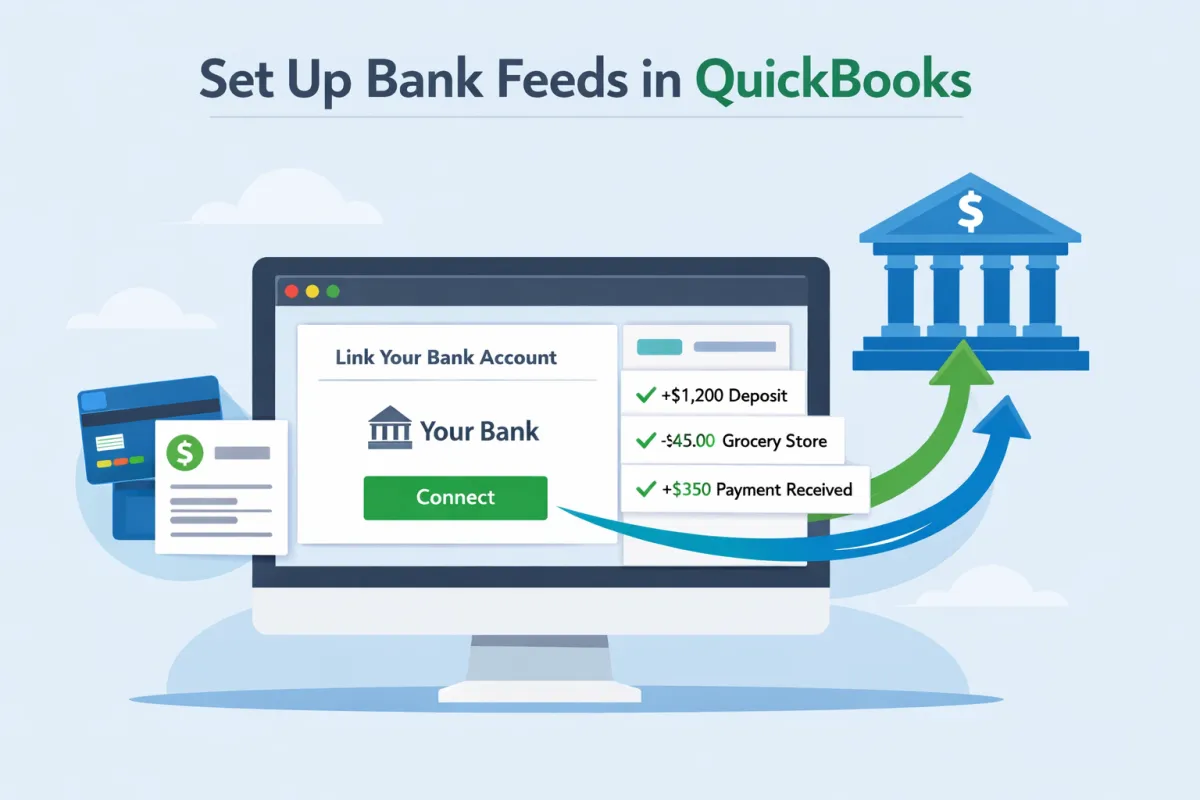
How to Set Up Bank Feeds the Correct Way
Introduction
Bank feeds are essential for maintaining accurate bookkeeping in today’s fast-paced business environment. By integrating banking transactions directly with accounting software like QuickBooks, business owners can streamline transaction management and reduce the hassle of manual inputs. The key benefits of using bank feeds include faster reconciliation, fewer errors, and a clearer picture of your financial health. This article will guide you through setting up bank feeds correctly to ensure a smooth accounting process.
Understanding Bank Feeds
What is a Bank Feed? A bank feed is a service that automatically imports your bank transactions into your accounting software. This integration allows you to view all recent transactions directly within your accounting platform, providing a real-time overview of your financial situation.
How Bank Feed Services Work with QuickBooksBank feed services are designed to work seamlessly with QuickBooks and QuickBooks Desktop, allowing for effortless synchronization of your banking data. Once linked, any time a transaction occurs in your bank account, it will automatically appear in your QuickBooks records.
Manual Transaction Import vs. Automated Bank FeedsManual transaction imports require you to download your bank statements and upload them into your accounting software, which can be time-consuming and error-prone. In contrast, automated bank feeds eliminate this step by synchronizing data continuously, simplifying your bookkeeping tasks.
Preparing to Set Up a Bank Feed
Requirements. Before setting up bank feeds, ensure you have an active bank account that supports online banking access. Most modern banks offer this feature, but it’s crucial to confirm compatibility.
Choosing the Right Accounting Software. Select accounting software that suits your business needs. While QuickBooks is highly popular, there are other options available. Ensure that the software you choose integrates well with your bank.
Security and Privacy Considerations. When connecting your bank account to any accounting software, security and privacy should be a top priority. Use strong passwords, enable two-factor authentication, and ensure the software complies with data protection regulations.
Connecting Your Bank to QuickBooks
Step-by-Step Guide
Open QuickBooks and navigate to the “Banking” menu.
Select “Add Account” or “Connect Account.”
Search for your bank and follow the prompts to log in securely.
Authorize QuickBooks to access your bank transactions.
Complete the setup process by confirming the settings.
QuickBooks Desktop vs. QuickBooks OnlineIn QuickBooks Online, the process is streamlined, allowing for quick connection. In QuickBooks Desktop, the connection steps might vary slightly, requiring you to access the banking section through the “Banking” tab.
Common Issues and Troubleshooting TipsSometimes, you may encounter issues while linking your bank account. Common problems include incorrect login credentials and connectivity issues. If you face a problem, try refreshing your browser, checking your internet connection, or re-entering your bank details.
Importing Transactions Using Bank Feeds
Automatic Import of TransactionsOnce your bank is connected, QuickBooks will automatically import transactions based on your settings, providing you with a daily or weekly update.
Reviewing and Categorizing Imported TransactionsCarefully review all imported transactions to ensure they match your records. Categorize them appropriately to maintain accurate financial reporting.
Tips for Matching TransactionsTo simplify the process, use the ‘Match’ feature in QuickBooks, which helps pair imported transactions with existing records. This will minimize discrepancies and make reconciliation easier.
Best Practices for Using Bank Feeds
Regularly Reviewing Imported TransactionsMake it a habit to review imported transactions frequently. This proactive approach ensures that any discrepancies are caught early.
Ensuring Accurate ReconciliationReconcile your accounts regularly to ensure that your accounting records align with your bank statements. Monthly reconciliations can help maintain accuracy.
Maximizing the Benefits of Bank Feed ServicesTake full advantage of the bank feed services available in your accounting software. Use features like categorization, memorization of transactions, and tagging to streamline your workflow.
Troubleshooting Bank Feed Issues
Common Errors and Connection ProblemsBe aware of common errors such as connection timeouts, incorrect credentials, or unsupported banks. Familiarize yourself with these issues to address them quickly.
Reconnecting Your Bank AccountIf your bank feed stops working, try reconnecting your account. You can do this by disconnecting the bank in QuickBooks and then re-establishing the connection.
Support Resources for QuickBooks UsersShould you encounter persistent issues, utilize the support resources provided by QuickBooks. Their help center offers detailed guides, FAQs, and user forums to assist you in resolving any problems you may face.
By understanding how to set up bank feeds correctly, you can enhance your bookkeeping processes, ensuring accuracy and efficiency. With the right setup in QuickBooks or your chosen accounting software, managing your transactions will be a seamless experience, allowing you to focus on growing your business.
